0:52:00
Branching
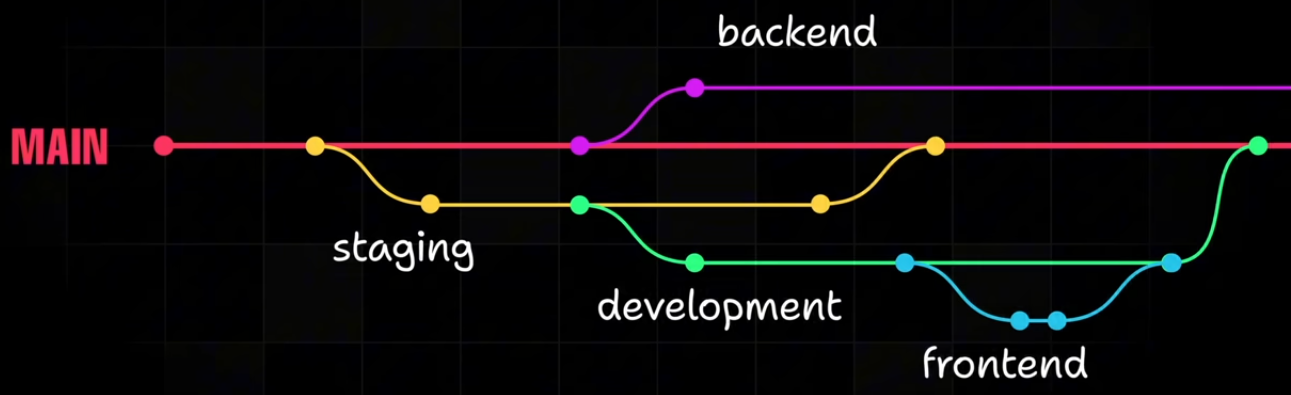
Branching allows you to test, review and manage changes before merging them with the main code base.
View all branches
git branch
Create a new branch
This makes an exact copy of the current branch
git branch <branch>
To use a specific branch
git checkout <branch>
Merging branches
This will merge the branch you specify into the current branch you are working in.
git merge <branch> -m "message"
Commit Commands
Commit staging to production
git commit -m "you message here"
Revert back to previous commit
git reset HEAD~
View status of changes. See which files will be updated in staging
git status
View list of commit changes
git log
git log --oneline
Configurations
User
You must have a user configured before you are able to commit.
Global
Use this so you do not have to keep typing your email/name to identify which changes are associated with who made them.
git config --global user.email "email@address.com"
git config --global user.name "The Hound"
Local
These over-ride the global user and can be used per repository
git config --local user.email "email@address.com"
git config --local user.name "The Hound"
Deleting Files
delete file and update stage
git rm <filename>
# to remove a file that has had uncommitted changes
git rm -f <filename>
Remove file from Stage, but keep in working
git rm --cached <filename>
Remove a folder recursively
git rm -r <folder>
Staging
Adding files
Add all files to staging
git add --all
git add -A
Add files from the current folder down
git add .
Adds new or modified files but ignore deleted
git add *
Restore staging to previous state
Only restore to previous state. Does not restore deleted files
git reset
Restore deleted files
git reset --hard